


The Best Budget Laptops for Video Editing in 2026 — and What You Should Actually Buy
A $700 laptop can be a fantastic deal for video editing.
It can also be a $700 mistake.
The problem is that laptop specifications can be surprisingly deceptive. One machine might give you 16GB of RAM and a modern processor, while another costs only a little more and gives you a much better graphics card, faster storage, better cooling, and a screen you can actually trust when you’re working with color.
For someone editing school projects or short 1080p videos, the difference may not matter much.
For someone cutting 4K footage in Adobe Premiere Pro or DaVinci Resolve, it can mean the difference between a laptop that feels perfectly usable and one that makes every project unnecessarily frustrating.
So instead of simply finding the cheapest laptops with impressive-looking specifications, we’ve focused on the machines that make the most sense for actual video editors.

What makes a good budget video-editing laptop?
The first thing to understand is that video editing is not a single-component workload.
Your processor matters. Your graphics card matters. RAM matters. Storage matters. Cooling matters. And, surprisingly often, the display matters more than buyers realize.
Adobe’s current Premiere Pro requirements make the distinction pretty clear. Adobe lists 16GB of RAM as its recommended amount for HD media and 32GB or more for 4K and higher-resolution work. For Windows systems, Adobe recommends 8GB of GPU memory for the best experience.
That doesn’t mean you need a $2,000 workstation to edit video.
It means you need to spend your money in the right places.
For a budget machine, we’d look for something roughly like this:
| Component | Minimum worth considering | Better target |
|---|---|---|
| RAM | 16GB | 32GB |
| Storage | 512GB SSD | 1TB SSD |
| GPU | RTX 4050-class | RTX 5050/5060-class |
| VRAM | 6GB | 8GB+ |
| CPU | Modern 6-core processor | Modern 8-core+ processor |
| Display | 1080p IPS | 100% sRGB or OLED |
These aren’t hard rules for every editor. Someone working almost exclusively with 1080p footage has very different requirements from someone editing long 4K projects with multiple effects and color grades.
But they provide a useful starting point.
1. Lenovo LOQ 15 — Best Overall
If we had to pick one budget Windows laptop as the safest all-round recommendation, the Lenovo LOQ 15 would be near the top of the list.
That’s not because it has the most impressive specification sheet.
It’s because the machine gets many of the important things right at the same time.
Depending on the configuration, you can find the LOQ 15 with newer RTX 5050 or RTX 5060 graphics, 16GB of RAM and fast SSD storage. Some configurations also offer a surprisingly good display for a laptop in this price range.
That’s important.
A gaming laptop can have an excellent GPU and still be a frustrating editing machine if its screen has poor color coverage. The LOQ is more appealing because some configurations offer a 100% sRGB display, making it more suitable for creators who need to make reasonable color decisions without immediately connecting an external monitor.
Recent 2026 pricing has put RTX 5050 LOQ configurations around the $900–$1,000 range during sales, while RTX 5060 versions have appeared around the low-$1,000 range. Prices vary considerably by configuration and promotion.

Why we’d buy it
The LOQ is a particularly good fit for someone who wants to edit videos today without immediately outgrowing the laptop.
The RTX 5050 version is already capable of serious work, while an RTX 5060 configuration makes more sense if you find one at a relatively small premium.
It’s also the kind of laptop that can pull double duty as a gaming or general-purpose machine.
Best for
Most video editors who want the best balance of price and performance.
The catch
It’s still a gaming laptop.
That means it’s heavier and less understated than many creator-focused machines, and battery life isn’t likely to be its biggest selling point.
Our verdict: Best overall budget video-editing laptop. Lenovo LOQ 15
2. Acer Nitro V 15 — Best for a Tighter Budget
If your budget is closer to $800, the Acer Nitro V 15 becomes much more interesting.
The Nitro V line has appeared with RTX 4050 and newer RTX 5050 configurations, making it one of the more accessible ways to get a dedicated NVIDIA GPU into a laptop without spending four figures.
The important word here is configuration.
Not every Nitro V is equally useful for video editing.
Some cheaper versions come with only 8GB of RAM. That’s where the seemingly cheap price can become misleading. Adobe recommends 16GB for HD editing and 32GB or more for 4K, so an 8GB configuration isn’t the version we’d choose for serious editing.
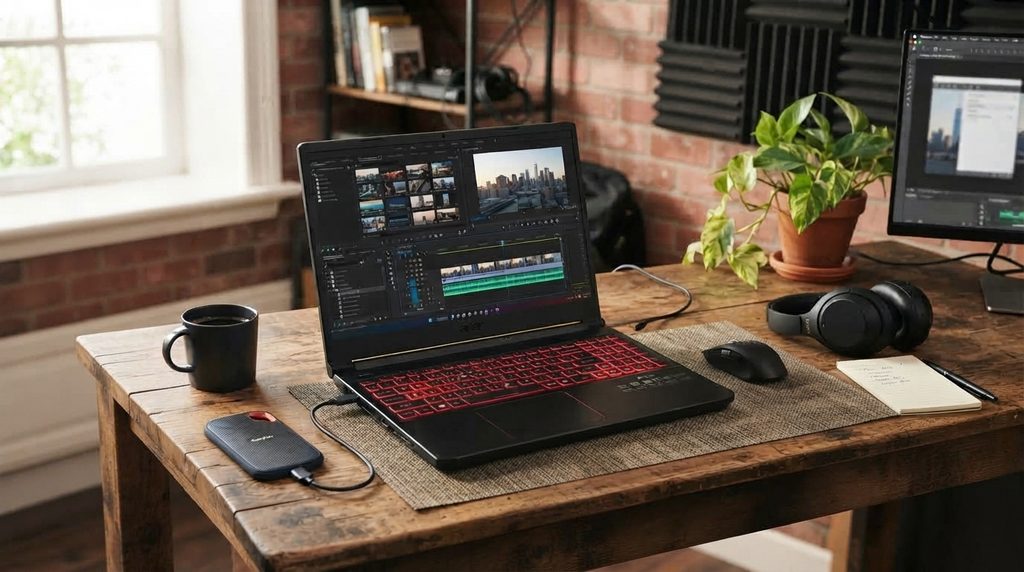
A current 2026 budget configuration with an RTX 5050 can be found around the mid-$800 range during sales, putting it in an attractive position for buyers who don’t want to cross the $1,000 mark.
Why we’d buy it
You get dedicated NVIDIA graphics without paying premium creator-laptop prices.
For 1080p editing, YouTube work, social-media content and moderate 4K projects, a properly configured Nitro V can make a lot of sense.
The catch
Watch the RAM, storage and display specifications carefully.
The cheapest model isn’t necessarily the cheapest usable model.
If you have to upgrade the RAM immediately and replace the SSD shortly afterward, that $750 laptop may not actually be a $750 laptop. Acer Nitro V 15
Our verdict: Best choice when keeping the initial price as low as possible matters.
3. MSI Katana 15 — Best for Raw Performance
The MSI Katana 15 takes a different approach.
Instead of trying to look like a premium creator machine, it puts much of the budget into performance.
Some current configurations combine an Intel Core i7-class processor with an RTX 5050 and 16GB of RAM. Around the $1,000 mark, that can make the Katana an interesting option for editors who care more about processing power than premium materials or a particularly impressive screen.
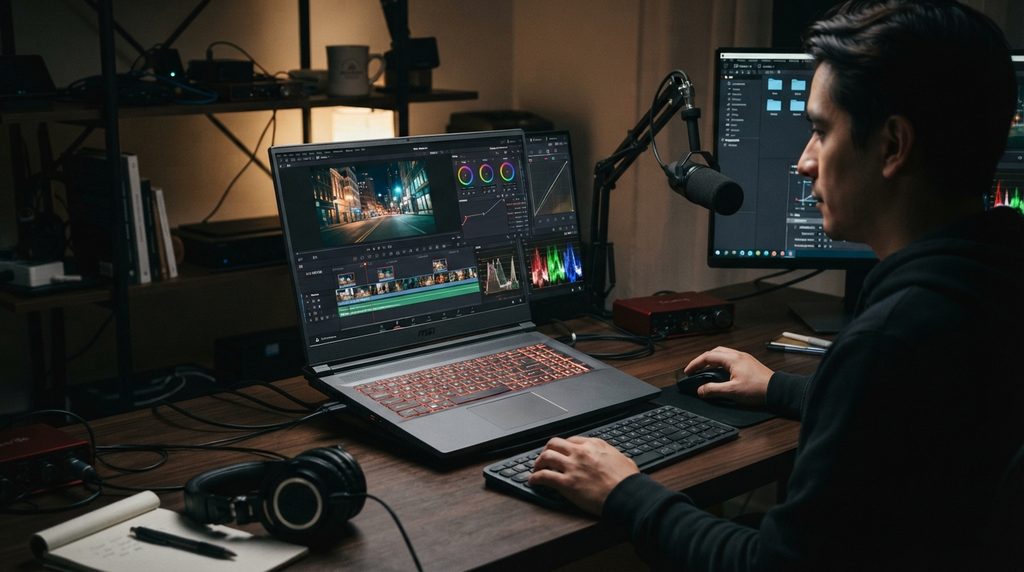
That performance focus can be useful when you’re rendering, exporting or working with effects.
Adobe’s own documentation explains that Premiere uses GPU acceleration for playback, rendering and export, while GPU-accelerated effects can improve timeline playback and other demanding tasks.
Why we’d buy it
If two laptops cost roughly the same and the Katana gives you substantially stronger processing hardware, it can be a very good editing machine. MSI Katana 15
The catch
The display is where you need to pay attention.
A fast gaming screen isn’t necessarily a good color-grading screen.
If you’re doing serious color work, budget for a good external monitor or choose a laptop with better display coverage.
Our verdict: A strong performance-first option, particularly when discounted. MSI Katana 15
4. HP Victus — Best Alternative
The HP Victus is another laptop worth watching when it goes on sale.
Configurations with RTX 4050 graphics, 16GB RAM and 512GB or 1TB SSDs can offer a good combination for editing without moving into expensive creator-laptop territory.
Recent September 2026 deals have put some RTX 4050 Victus configurations around $949.

Why we’d buy it
It’s a relatively straightforward recommendation when you find the right configuration at the right price.
The RTX 4050 is still perfectly capable of video editing. Adobe’s current Premiere documentation recommends at least 4GB of GPU memory and 8GB for its recommended Windows configuration, while its GPU-acceleration guidance shows 6GB as a useful target for 4K workflows. HP Victus
The catch
The RTX 4050 is becoming less exciting as newer RTX 5050 and RTX 5060 machines enter the same price territory.
If a Victus RTX 4050 costs nearly as much as a similarly equipped RTX 5050 machine, we’d take the newer machine.
Our verdict: A good alternative when the discount is strong.
5. ASUS Vivobook Pro 15 OLED — Best for Creators
Here’s where the list gets more interesting.
The ASUS Vivobook Pro 15 OLED isn’t trying to be a gaming laptop that happens to edit video.
It’s designed more directly around creative work.
Depending on the configuration, it can pair a modern Intel processor with an RTX 4050 or RTX 4060, substantial RAM and a 1TB SSD. More importantly, the display can be a 3K OLED panel with 100% DCI-P3 coverage.
That’s a big deal for video editors.
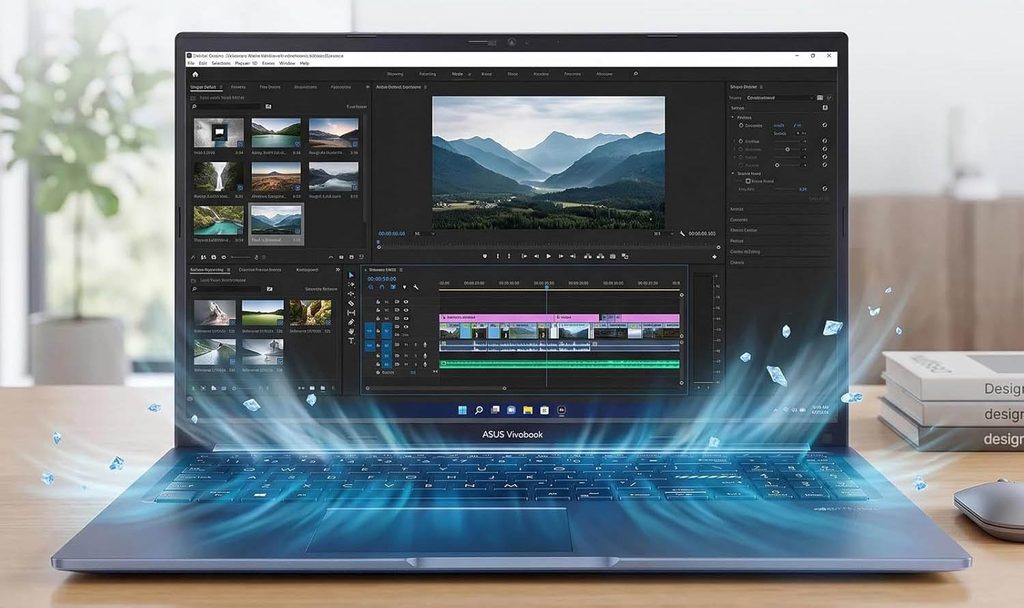
A fast GPU helps you process your footage.
A good screen helps you see what you’re actually doing.
The problem is price. Once you move into the higher-memory, RTX 4060 configurations, the Vivobook Pro can stop looking like a budget laptop altogether.
Why we’d buy it
If video editing is more important to you than gaming, this is arguably the more sensible type of machine. ASUS Vivobook Pro 15 OLED
The catch
You pay for the better display and creator-oriented design.
Someone who simply wants maximum performance per dollar may get more value from a Lenovo LOQ 15 or MSI Katana 15.
Our verdict: The pick for editors who care about display quality as much as performance.
What about the MacBook Neo?
The MacBook Neo is worth mentioning because its low price makes it an obvious temptation.
At roughly $600–$700, it sits far below most dedicated-GPU Windows editing laptops.
And it’s more capable than that price might suggest.
Adobe’s current Premiere requirements list Apple silicon systems among the supported platforms, but Adobe recommends 16GB of unified memory for Apple silicon while the Neo starts from an 8GB configuration.
That distinction matters.
The Neo can make sense for light editing, basic 1080p projects and someone who specifically wants macOS at a low price.
But we’d hesitate to make it the primary recommendation for someone building a serious video-editing workflow.
You can’t simply add another 16GB of RAM later.

Our verdict: Impressive for light editing, but not the budget editing machine we’d choose for demanding work.
Which laptop should you actually buy?
The answer depends on what you’re doing.
| Your priority | Best choice |
|---|---|
| Best overall balance | Lenovo LOQ 15 |
| Lowest sensible price | Acer Nitro V 15 |
| Raw performance | MSI Katana 15 |
| Best sale alternative | HP Victus |
| Best display for creators | ASUS Vivobook Pro 15 OLED |
| Cheapest Mac for light editing | MacBook Neo |
But there’s another question worth asking.
Should you buy RTX 4050, RTX 5050 or RTX 5060?
This is where things get complicated.
The RTX 4050 is still a capable budget GPU. But newer RTX 5050 laptops are increasingly appearing below or around the $1,000 mark, and discounted RTX 5060 machines are beginning to approach that territory too. Current 2026 laptop deals show just how quickly the value equation is changing.
So don’t automatically buy the RTX 4050 because somebody called it the “best budget GPU.”
Look at the actual price difference.
If an RTX 5050 laptop costs only $50–$100 more than an RTX 4050 model with otherwise similar specifications, the newer machine may make more sense.
And if an RTX 5060 model is only slightly more expensive again, that’s worth serious consideration.
The GPU name is only part of the story, though. Laptop GPUs can run at different power levels depending on the machine, so two laptops with the same GPU designation don’t necessarily perform identically.
Don’t make these five budget laptop mistakes
1. Don’t buy based on RAM alone
A laptop with 16GB RAM isn’t automatically a good editing laptop.
You still need a capable CPU, GPU and storage system.
2. Don’t ignore the GPU
Premiere uses GPU acceleration for playback, rendering and export, and Adobe recommends current Studio drivers for supported NVIDIA GeForce RTX notebook GPUs.
For someone editing regularly, integrated graphics can be a very different experience from a proper dedicated GPU.
3. Don’t assume 512GB is a lot of storage
It isn’t.
A handful of 4K projects can consume hundreds of gigabytes surprisingly quickly.
The operating system, editing software, cache files, project files and footage all compete for that space.
A 1TB SSD is much more comfortable if your budget allows it.
And even then, an external SSD is useful for storing finished projects and large media libraries. Adobe itself recommends a fast internal SSD for applications and cache, plus an additional high-speed drive for media.
4. Don’t confuse a fast display with a good editing display
A 144Hz gaming display might look impressive on a specification sheet.
That doesn’t tell you how accurately it reproduces color.
For video editing, we’d pay attention to color coverage and accuracy, not just refresh rate.
5. Don’t compare GPU names without looking at the entire laptop
An RTX 5060 doesn’t magically turn every laptop into a high-end workstation.
Cooling, power limits, CPU performance, RAM and the laptop’s overall design all affect what you get in practice.
How much laptop do you really need?
For basic 1080p editing, you don’t need an enormous machine.
A modern processor, 16GB RAM, an SSD and a reasonable GPU can handle a lot.
For regular 4K editing, the requirements climb.
Adobe currently recommends 32GB or more for 4K and higher-resolution media, and its current Premiere documentation recommends 8GB of GPU memory for the best Windows configuration.
That’s why we’d rather see someone buy a $900 laptop with 16GB RAM, a good GPU and upgradeable storage than spend the same money on a thin machine with a premium exterior but limited graphics performance.
The right laptop isn’t the one with the most impressive specification.
It’s the one where the specifications work together.
The bottom line
You don’t need to spend $2,000 to start editing video seriously.
The market has reached a useful point where machines around the $800–$1,000 range can offer dedicated NVIDIA graphics, fast processors and enough RAM for demanding creative work.
For most buyers, we’d start with the Lenovo LOQ 15.
It offers the best combination of performance, display quality and upgrade potential without pushing too far into premium pricing.
If you’re trying to spend less, the Acer Nitro V 15 is the one to watch, provided you choose a configuration with enough RAM.
If performance matters more than everything else, the MSI Katana 15 deserves a look.
If color and display quality are a major part of your work, the ASUS Vivobook Pro 15 OLED is the more interesting choice.
And if you find a heavily discounted RTX 5060 laptop close to the price of an RTX 4050 or RTX 5050 machine, stop and compare the specifications before buying. The older GPU isn’t automatically the better bargain just because the laptop is cheaper.
The smartest budget is not necessarily the smallest one.
It’s the amount that gets you a laptop you won’t immediately wish you’d spent another $100 on.